Setting up your APN

apple iOS logo

iOS

Please follow the instructions below to create a plan.com configuration profile that gives you direct access to our data services.

1 / 16
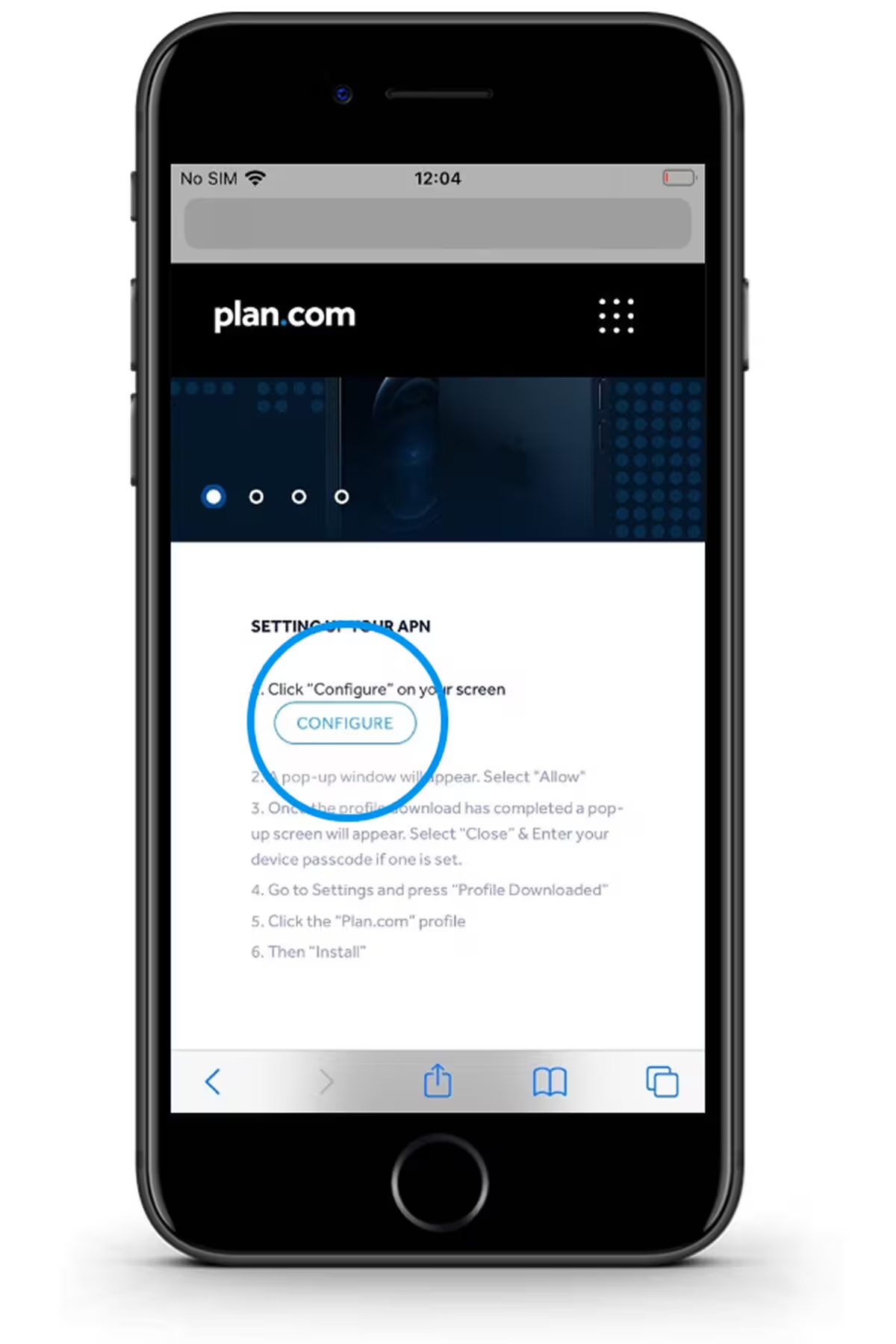
Click “Configure” on your screen

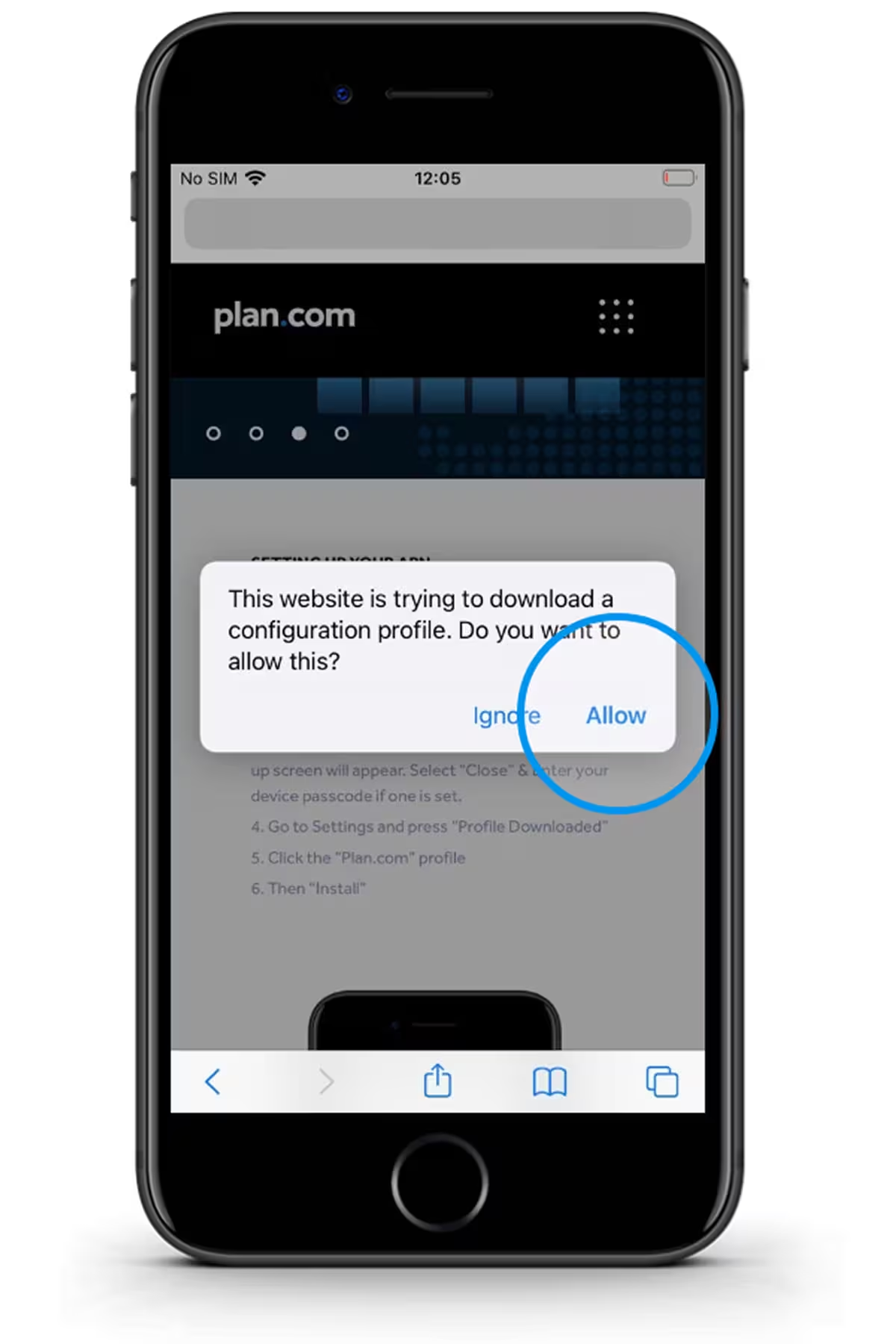
A pop-up window will appear. Select "Allow"

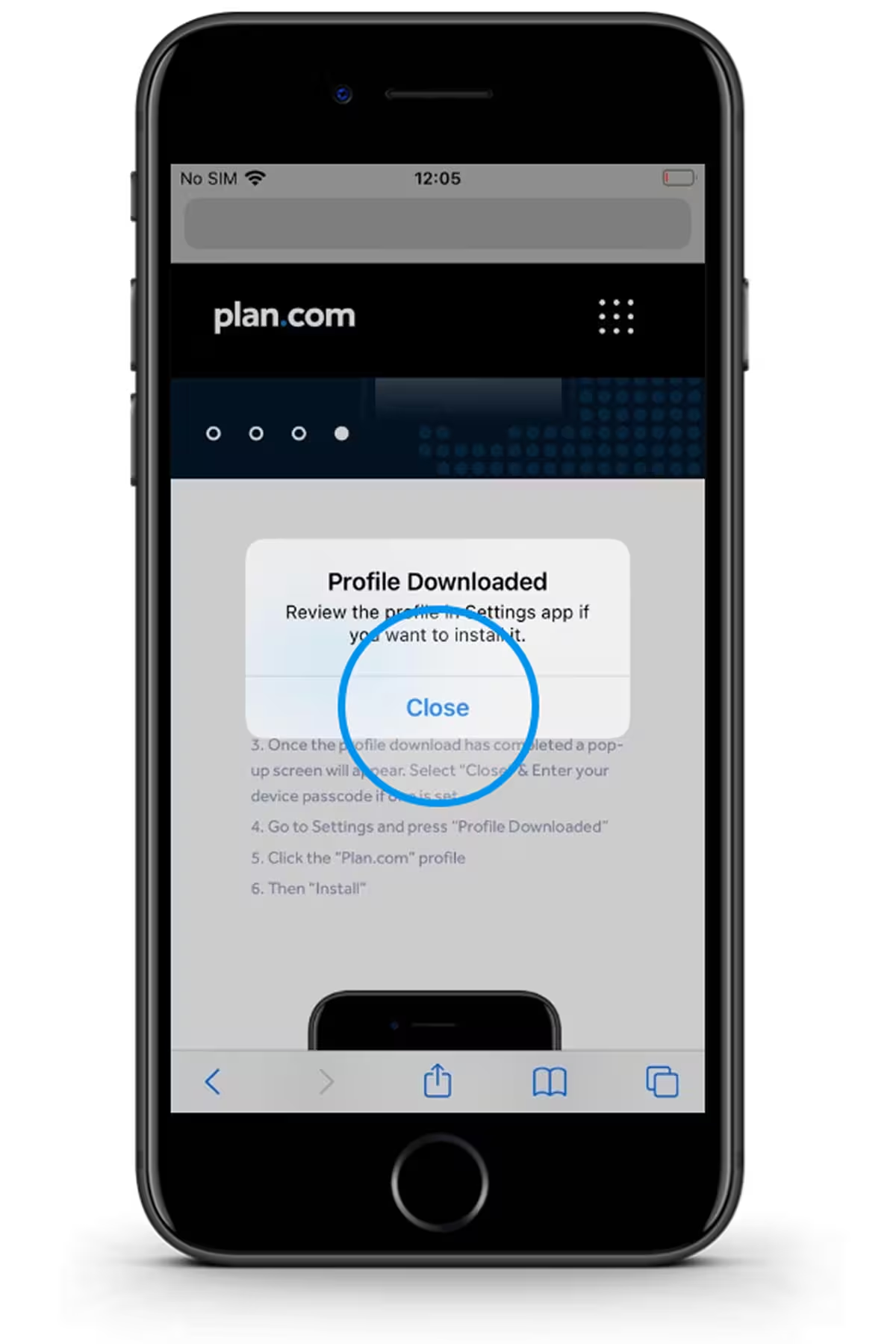
Once the profile download has completed a pop-up screen will appear. Select "Close” & Enter your device passcode if one is set.

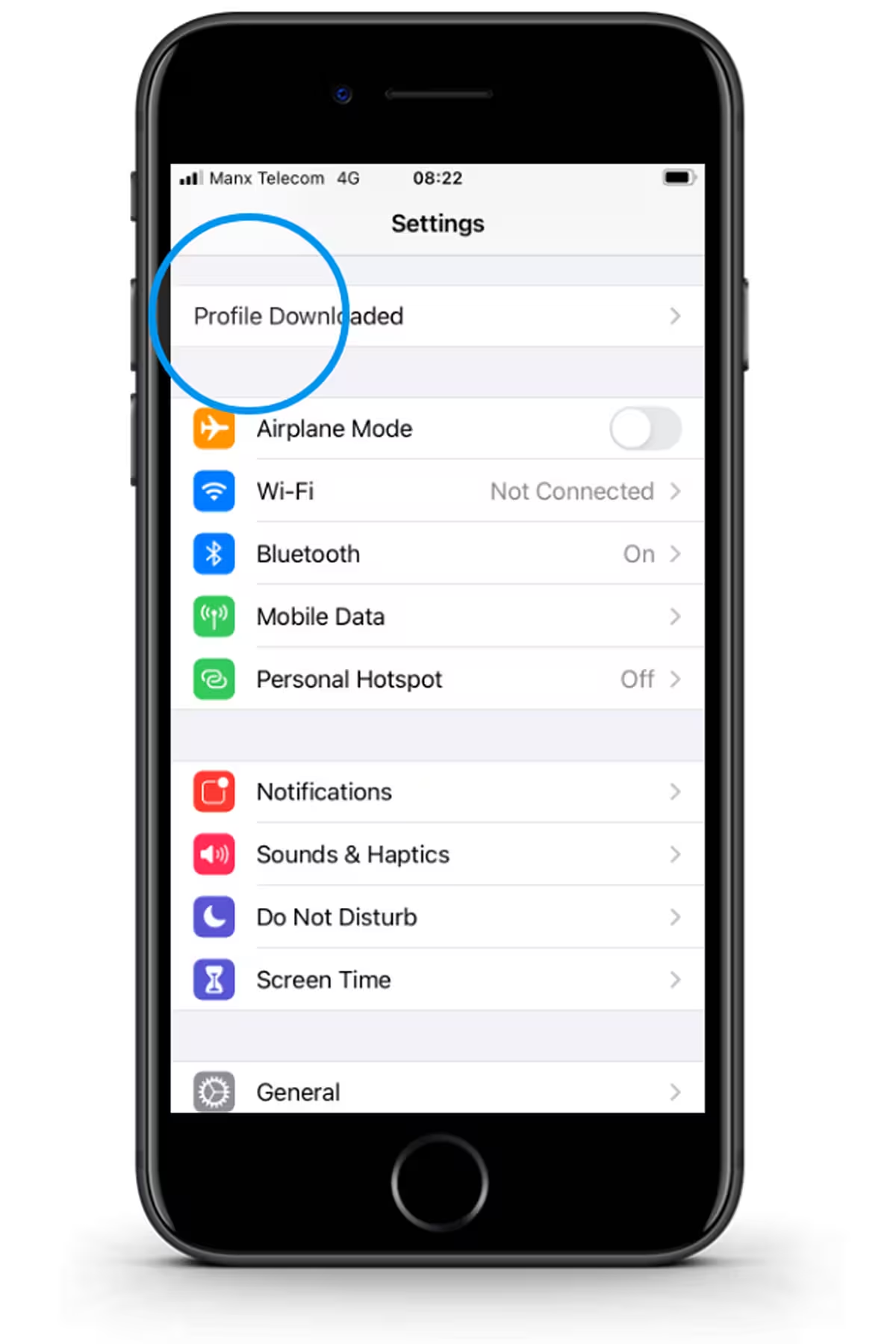
Go to Settings and press “Profile Downloaded”

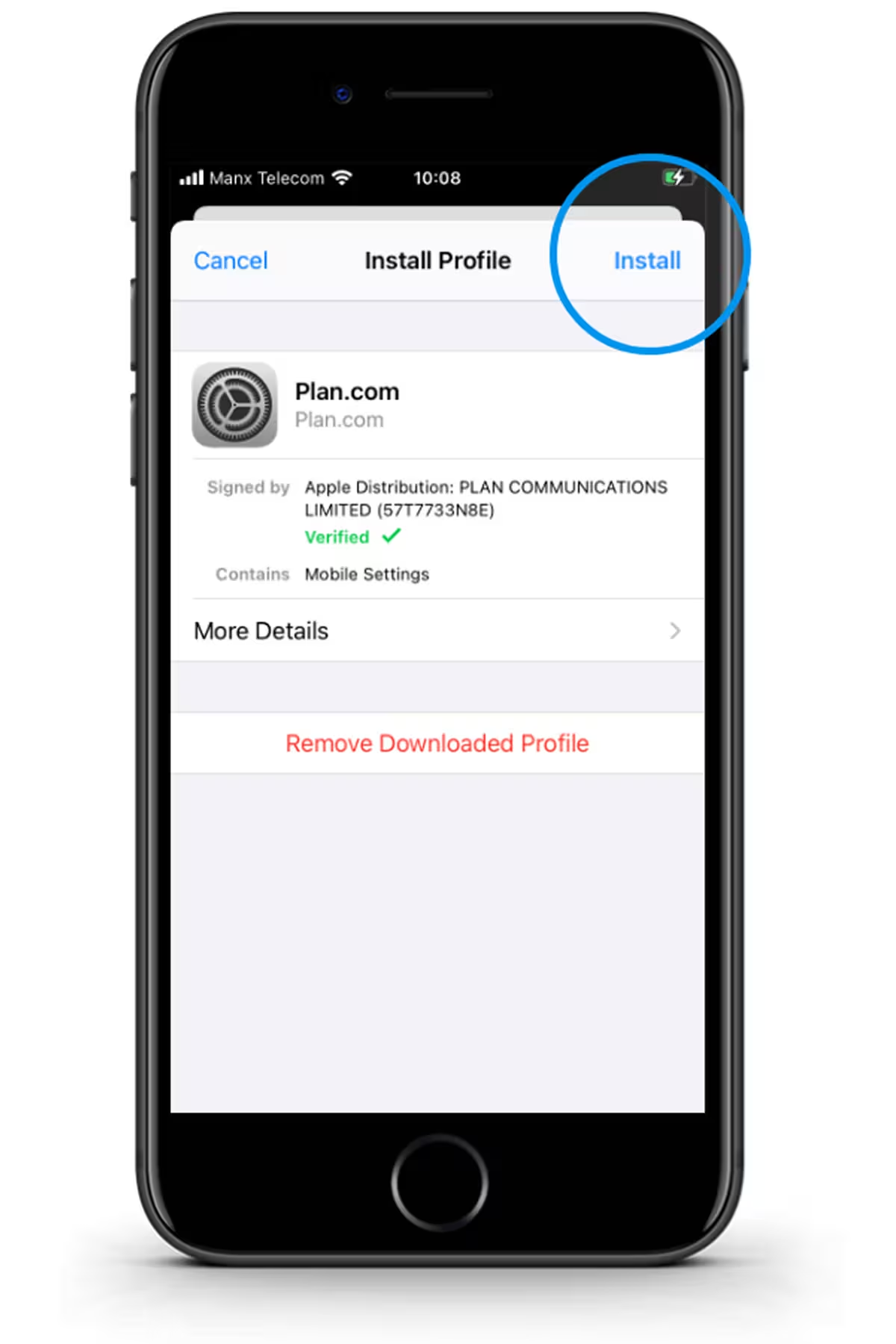
Click “Install” on the Plan.com profile

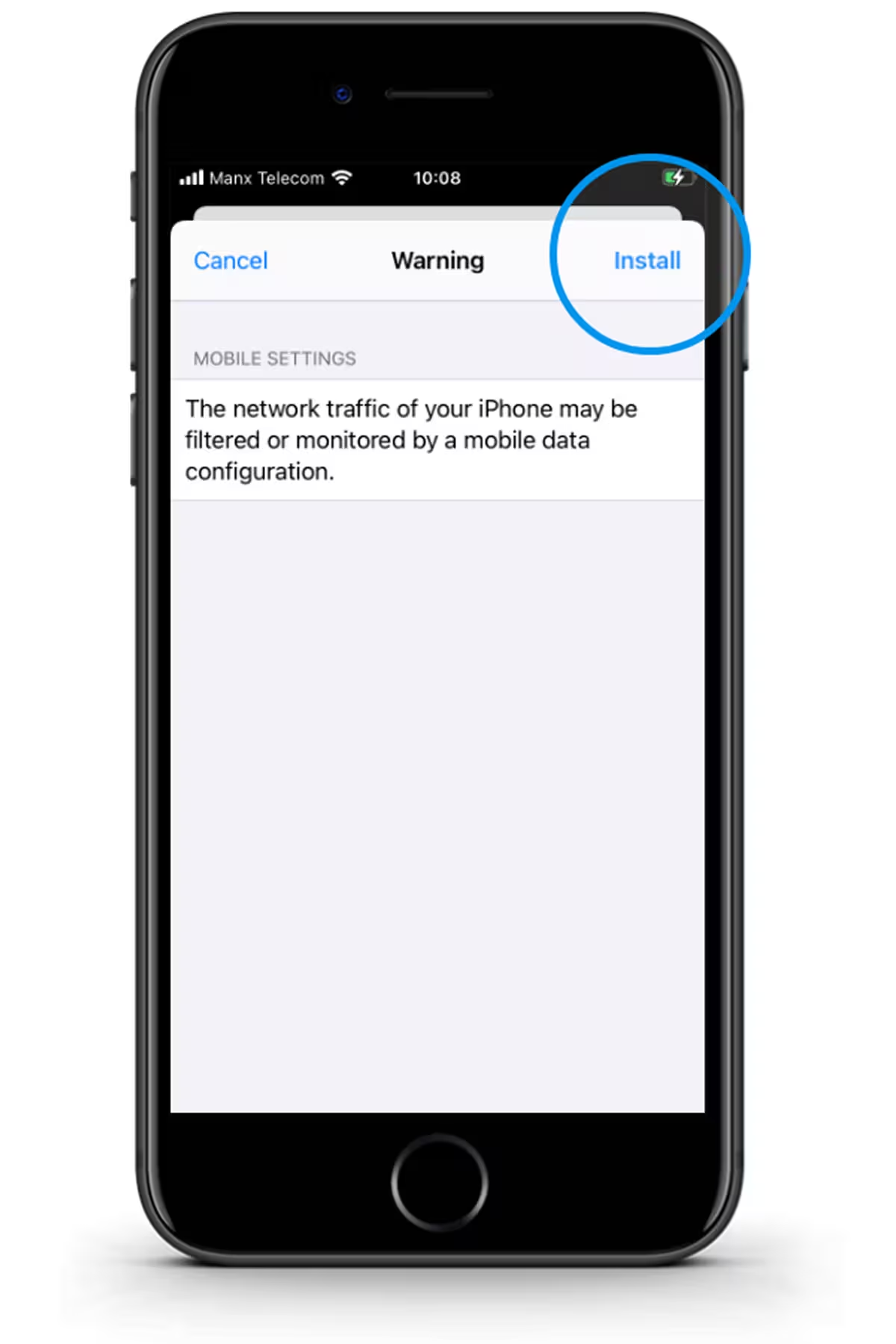
Press “Install” again

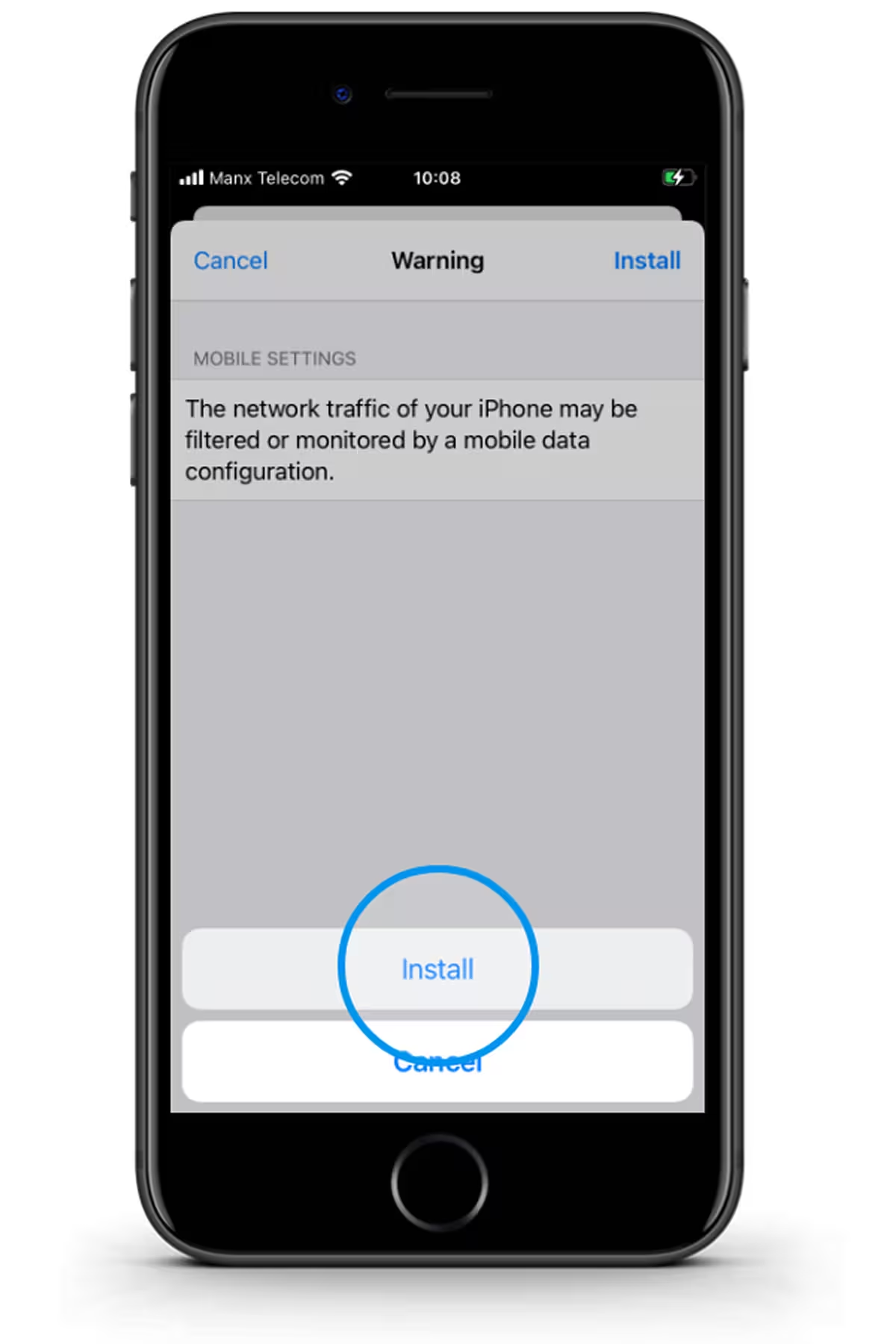
Then press “Install” again

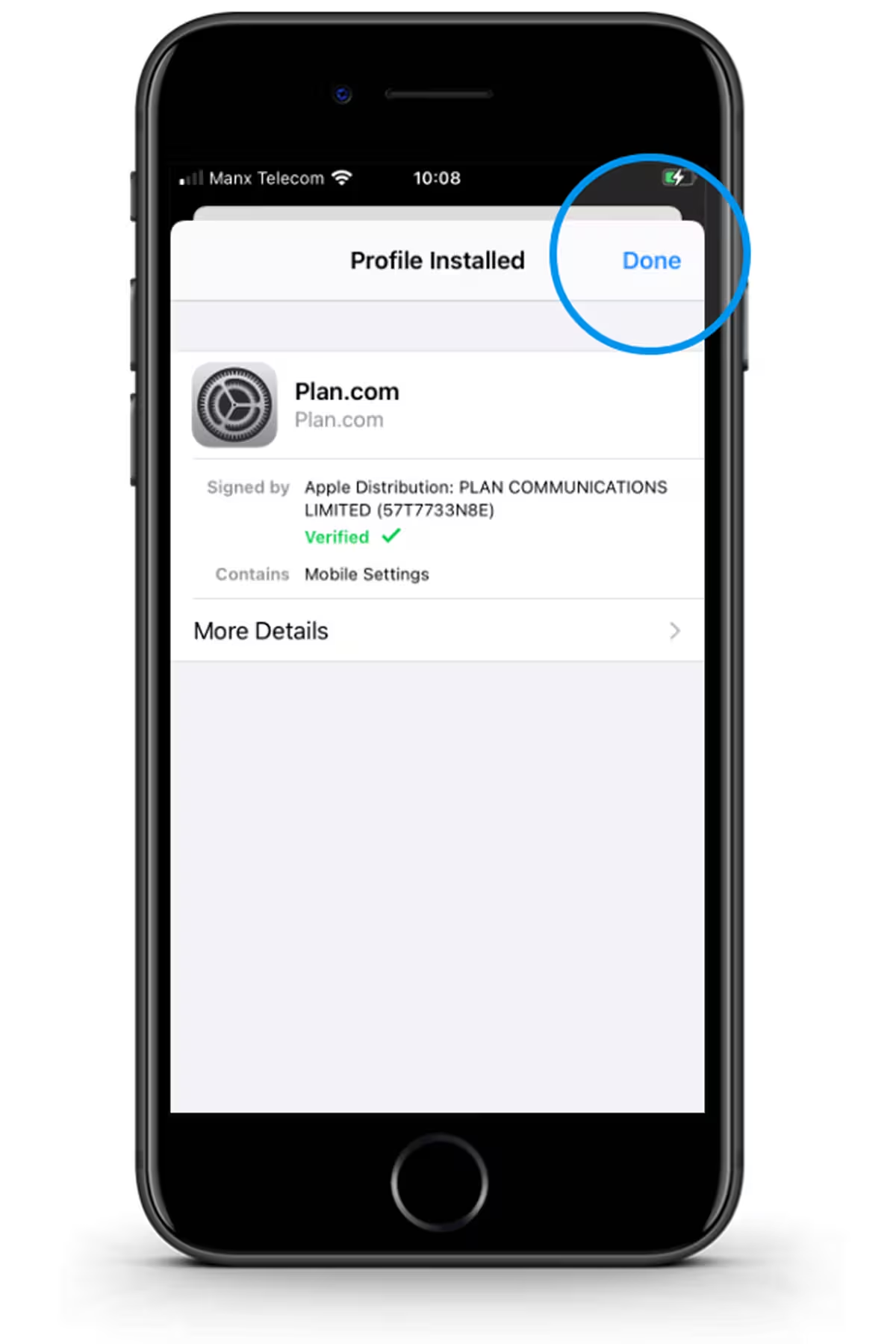
Press “done” & your phone has now been set up to Internet.

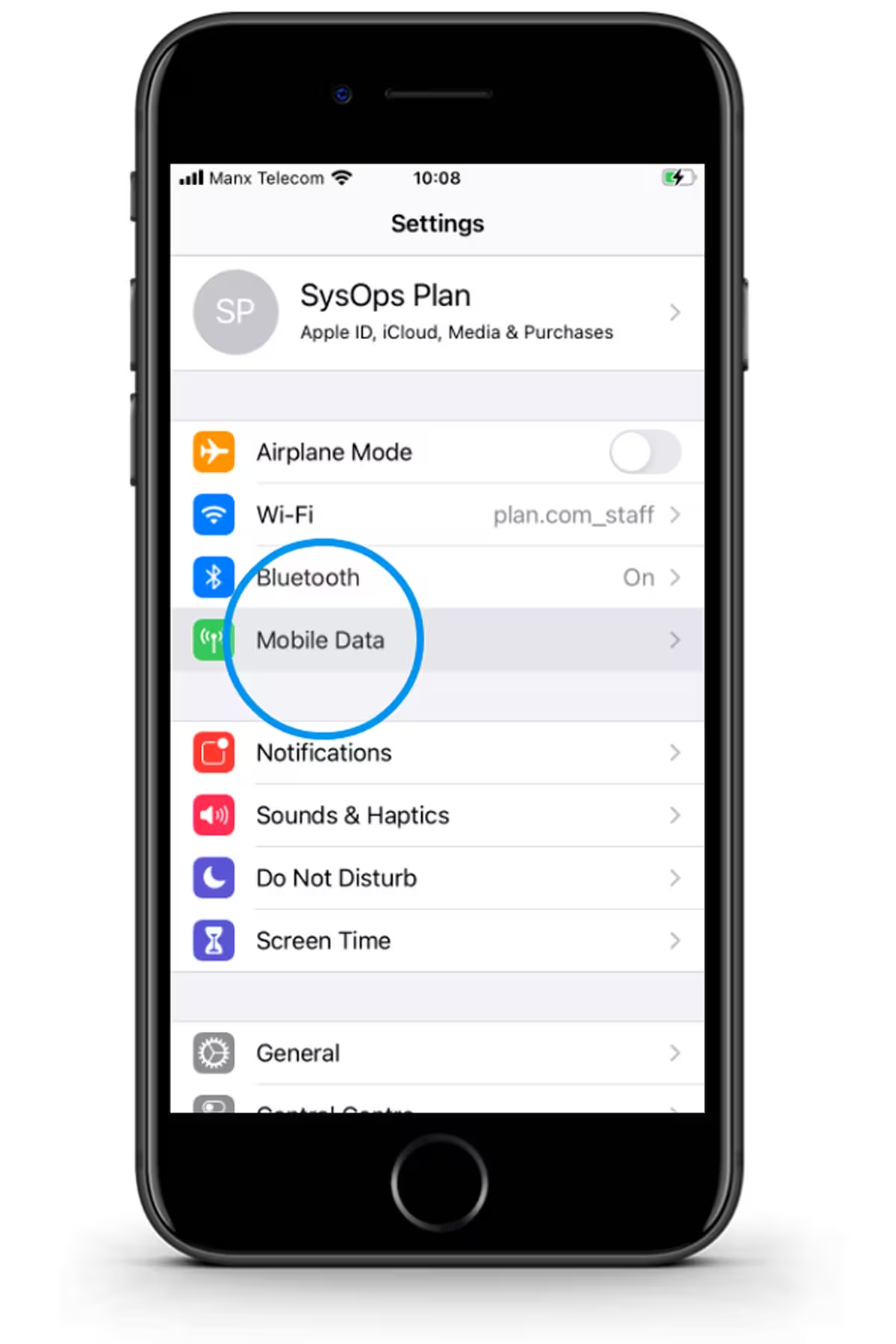
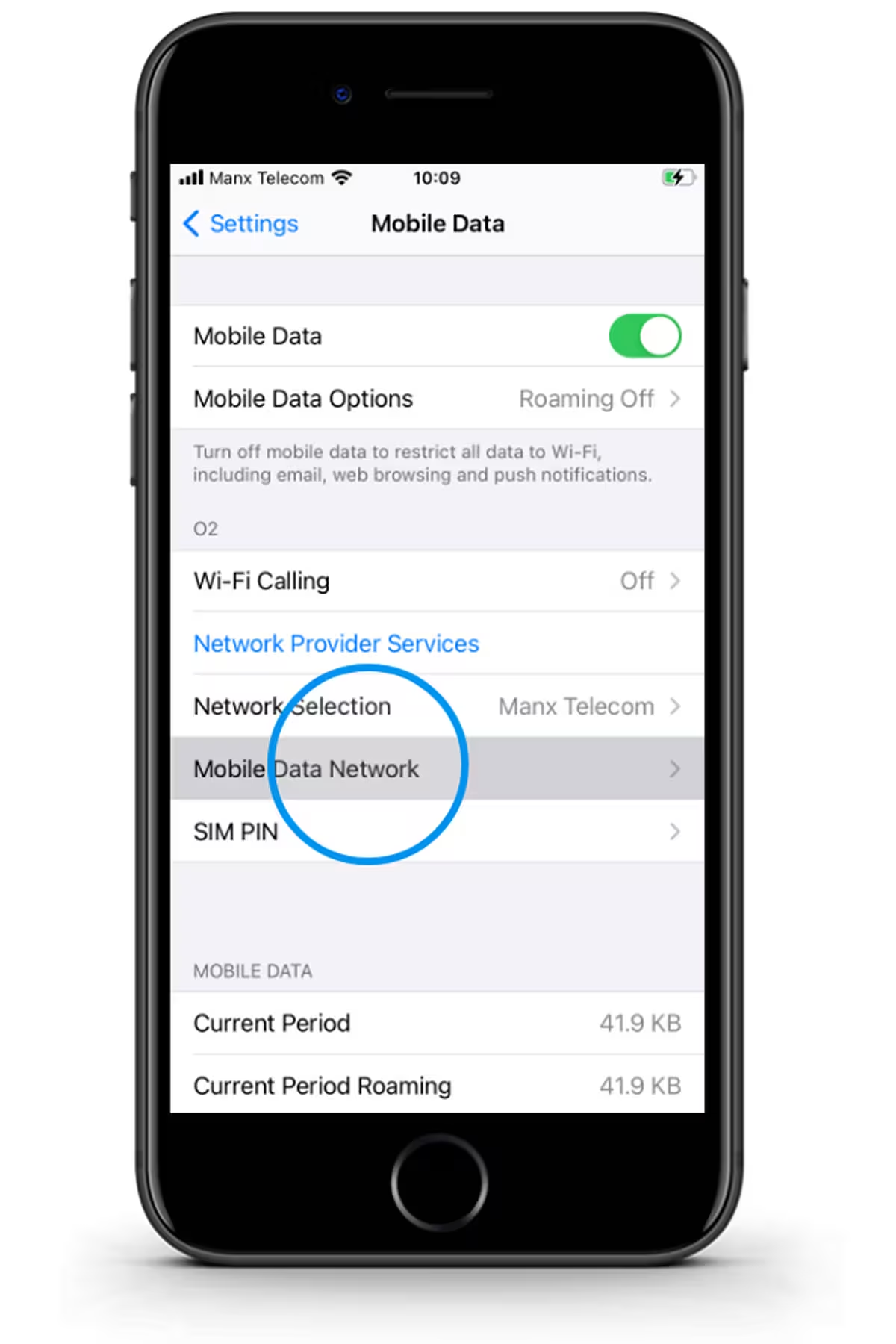
Go to Settings and press “Mobile Service"

Then press “Mobile Data Network”

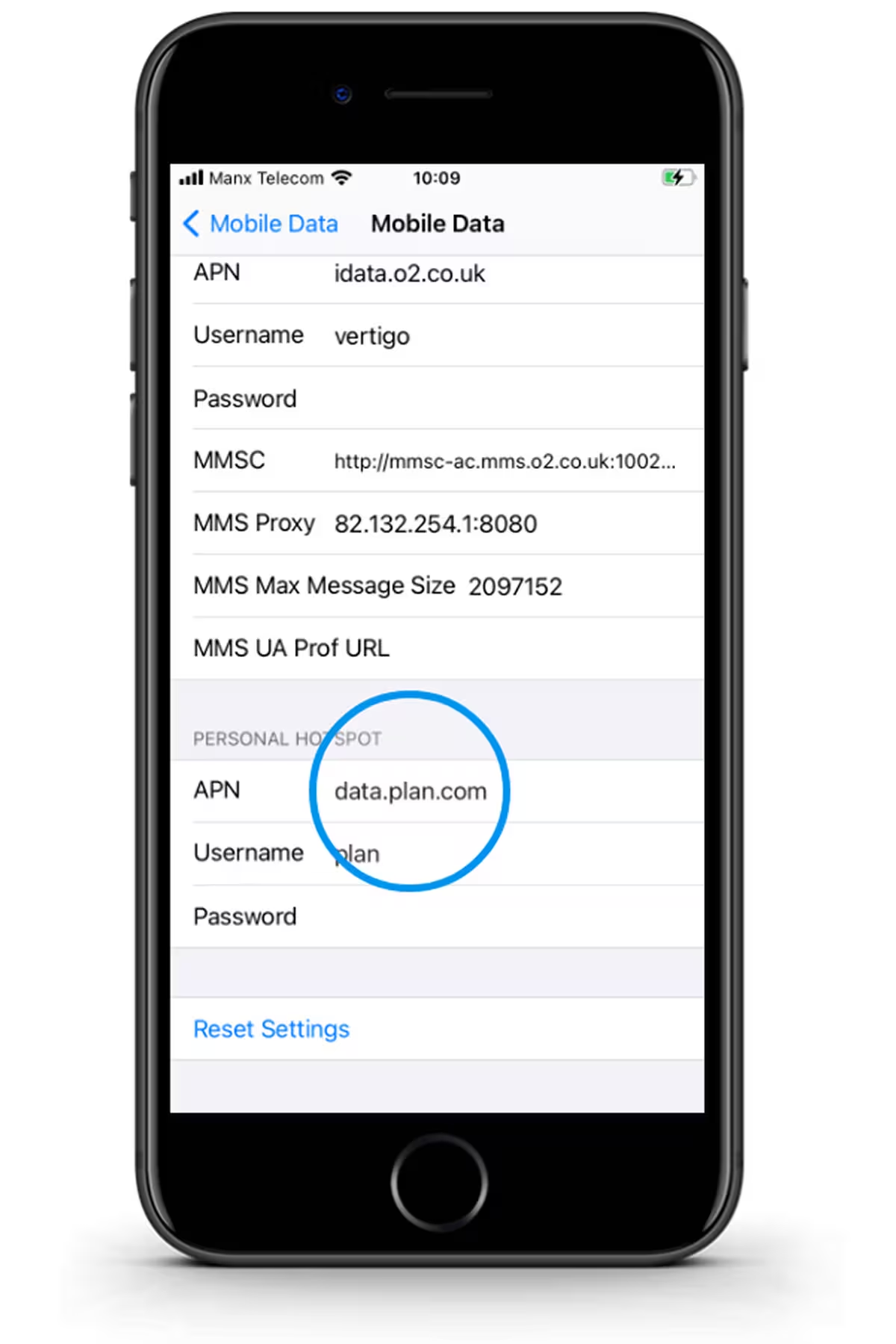
Scroll down to Personal Hotspot

Select APN & Enter "data.plan.com"

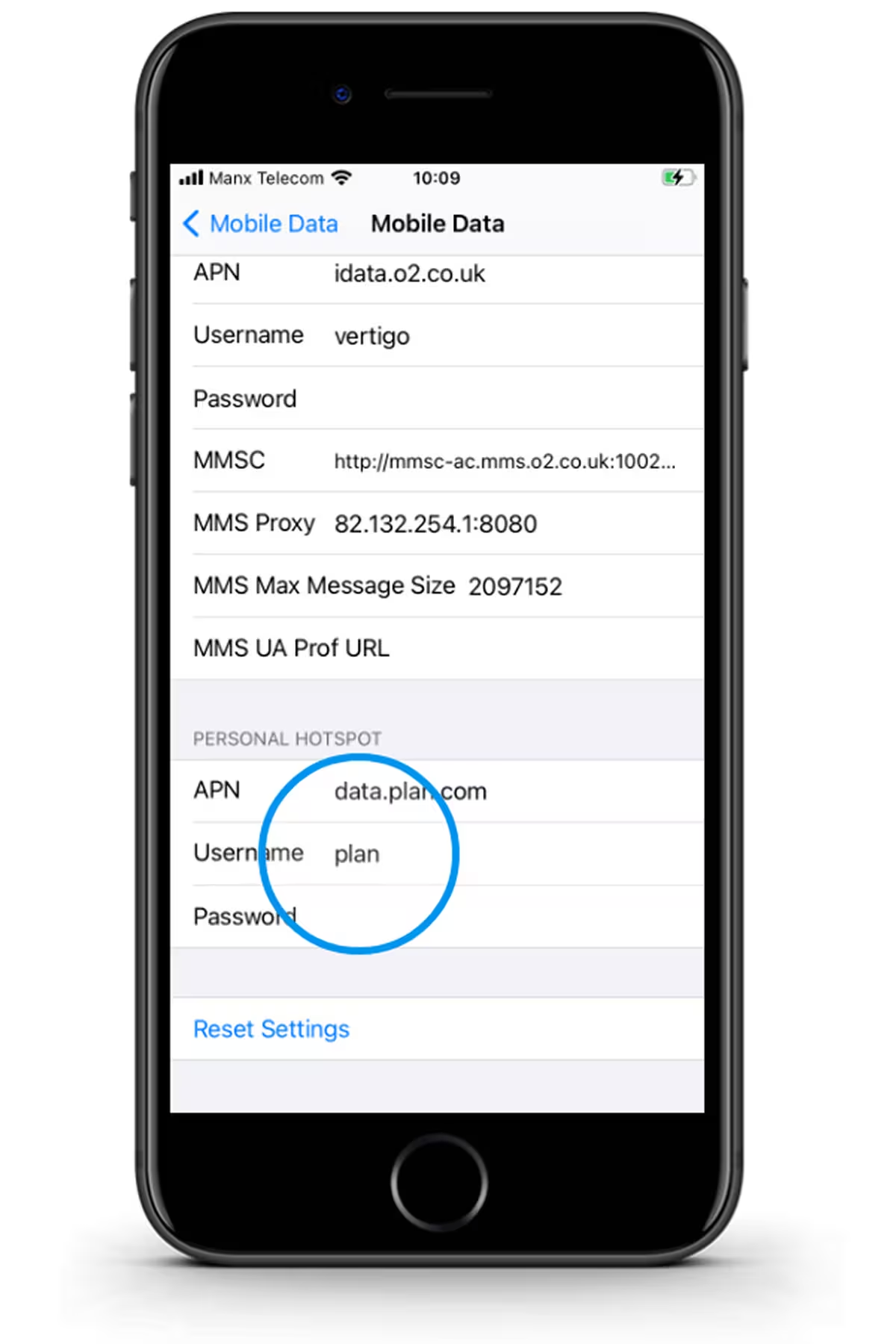
Select Username & Enter "plan” & leave Password blank.

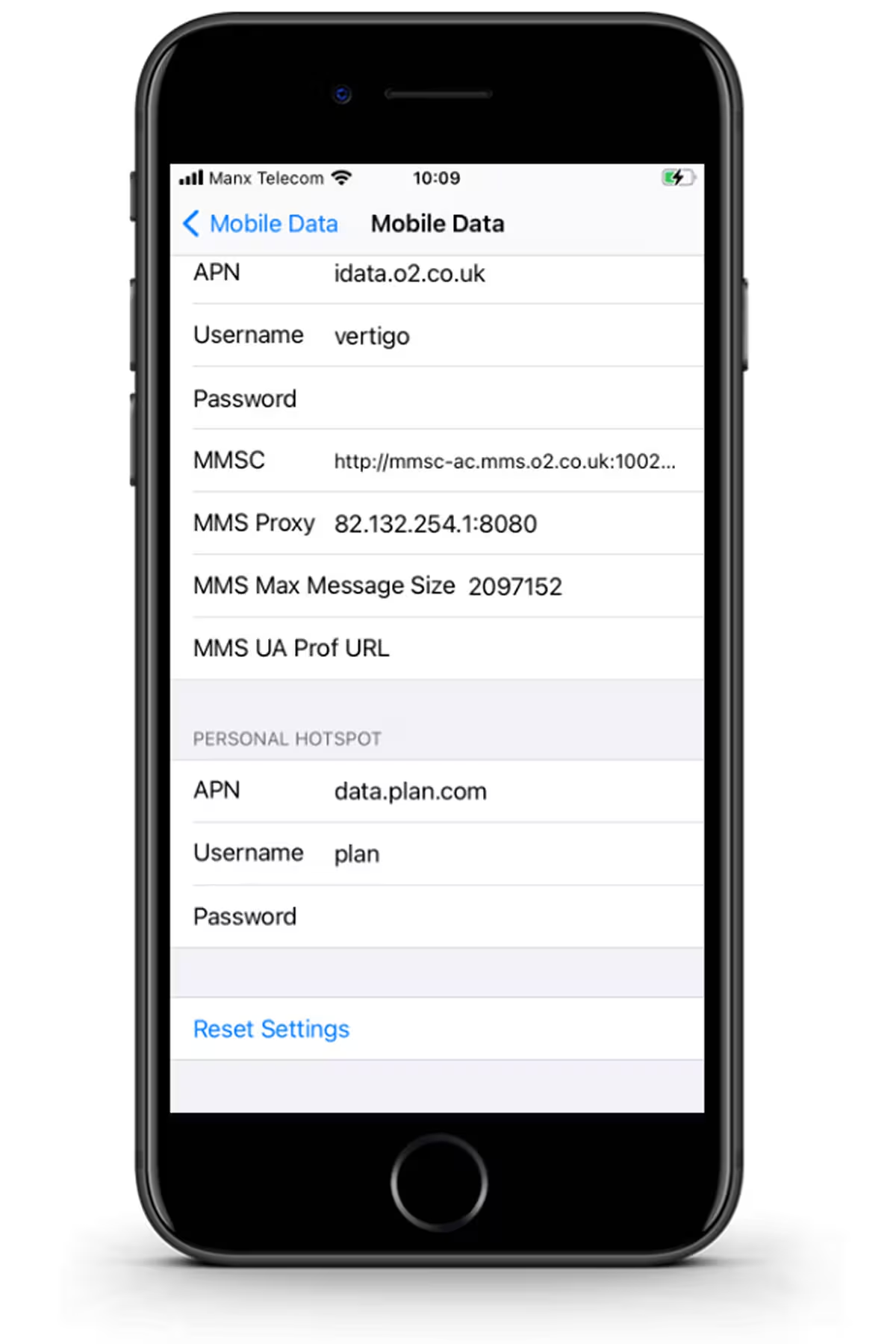
Your phone has now been set up to for tethering.

The power is in your hands.

The app that brings together everything you need to manage your business mobiles.