huawei logo

Huawei Dongle

Please follow the instructions below to create a plan.com configuration profile that gives you direct access to our data services.

Setting up your APN
Step 01

Provisioning - Inserting the SIM

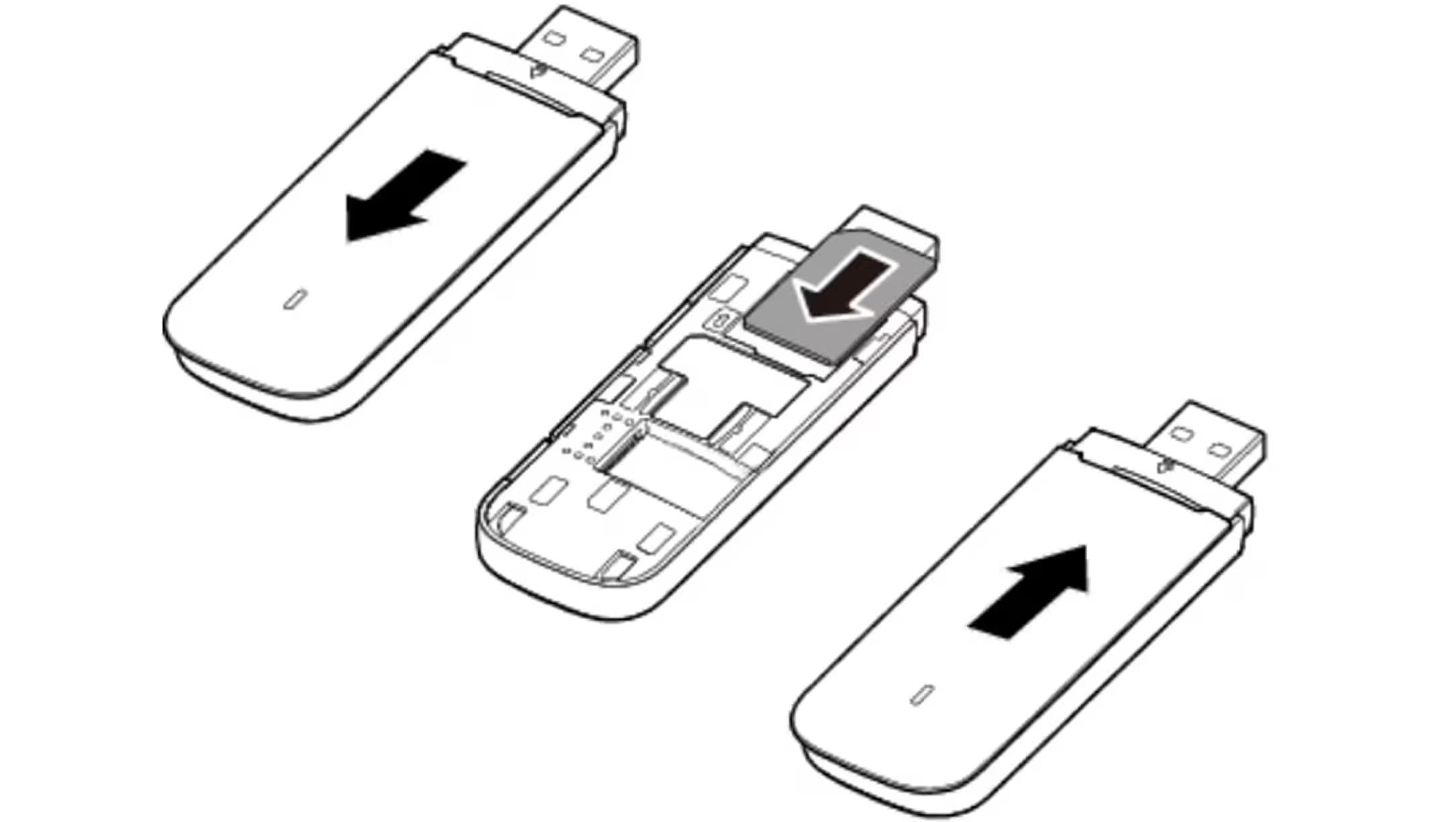
1. Remove the USB cap and slide off the front faceplate

Step-by-step illustration of removing the cover and inserting a SIM card into a USB modem.
Step 02

Provisioning - Inserting the SIM

2. Insert a standard size SIM card.

Step-by-step illustration of removing the cover and inserting a SIM card into a USB modem.
Step 03

Provisioning - Inserting the SIM

3. Reseat and slide on the front faceplate

Step-by-step illustration of removing the cover and inserting a SIM card into a USB modem.
Step 04

Connecting to the Modem

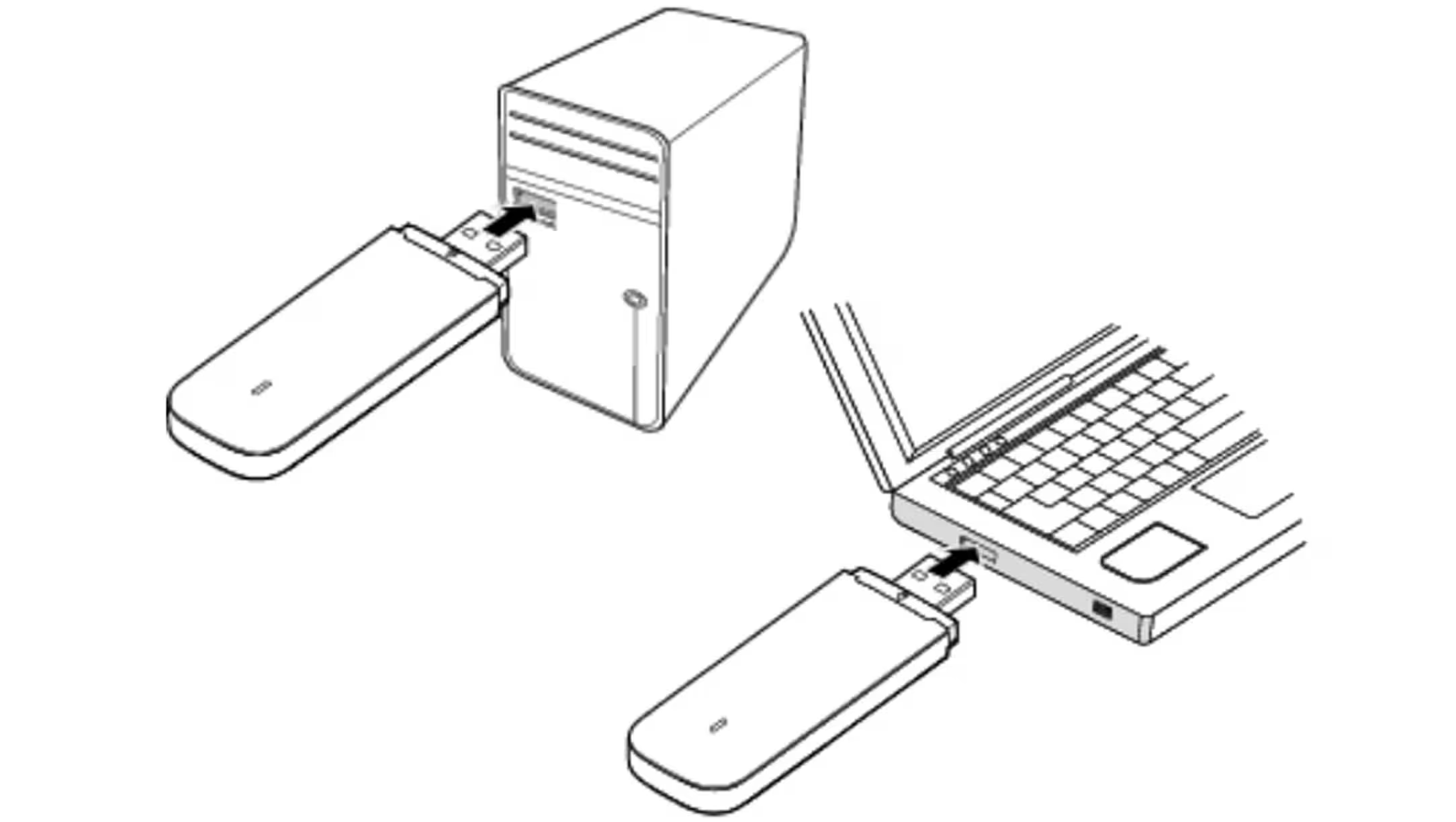
1. Insert the modem into a USB port on a computer.

Illustration showing a USB device being plugged into the USB ports of a desktop computer and a laptop.
Step 05

Connecting to the Modem

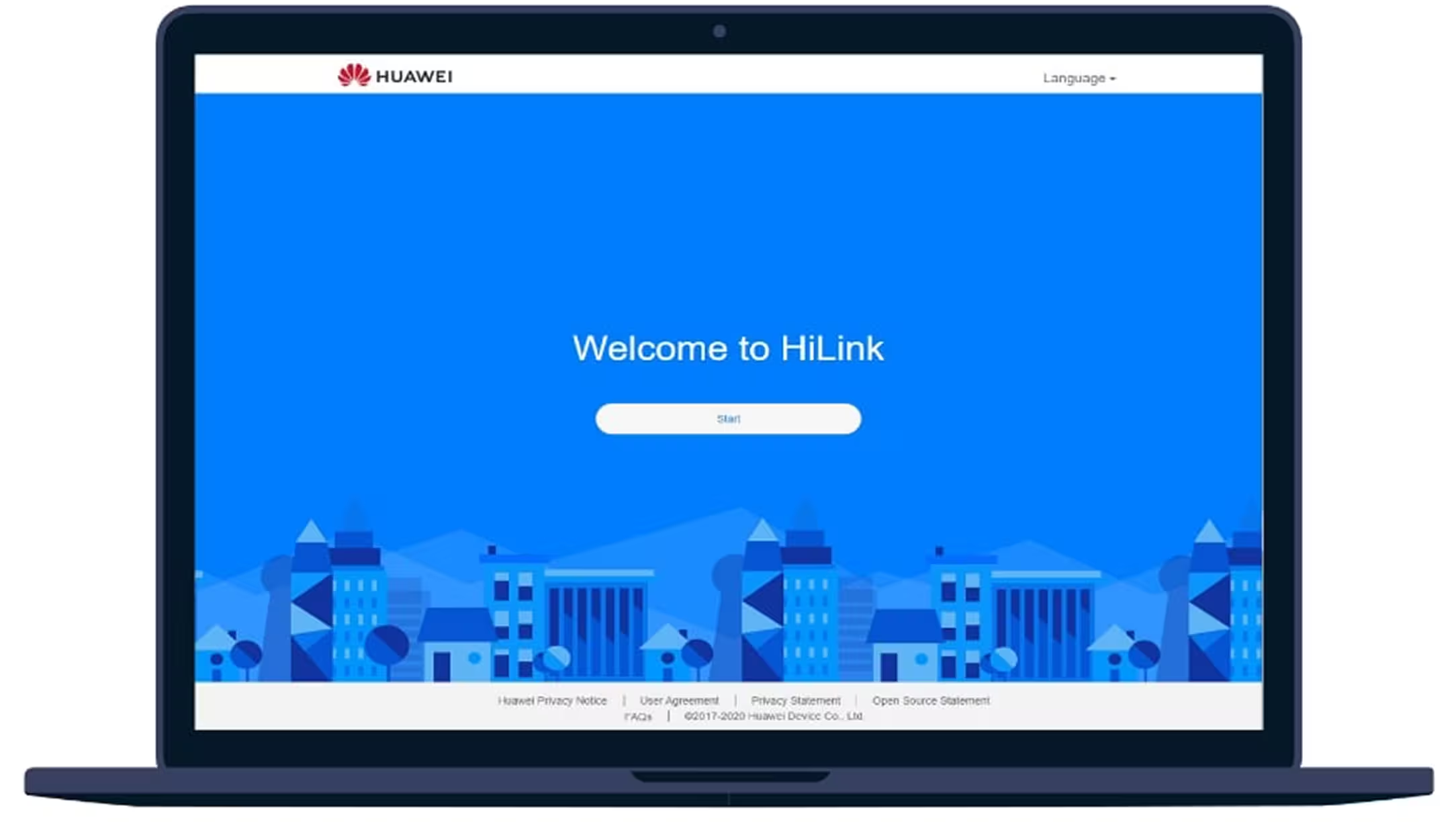
2. Your computer will automatically detect the device and open a tab on your browser for its web management page (http://192.168.8.1), press Start to begin.

Huawei laptop screen displaying a blue welcome page for HiLink with a Start button and a cityscape illustration at the bottom.
Step 06

Connecting to the Modem

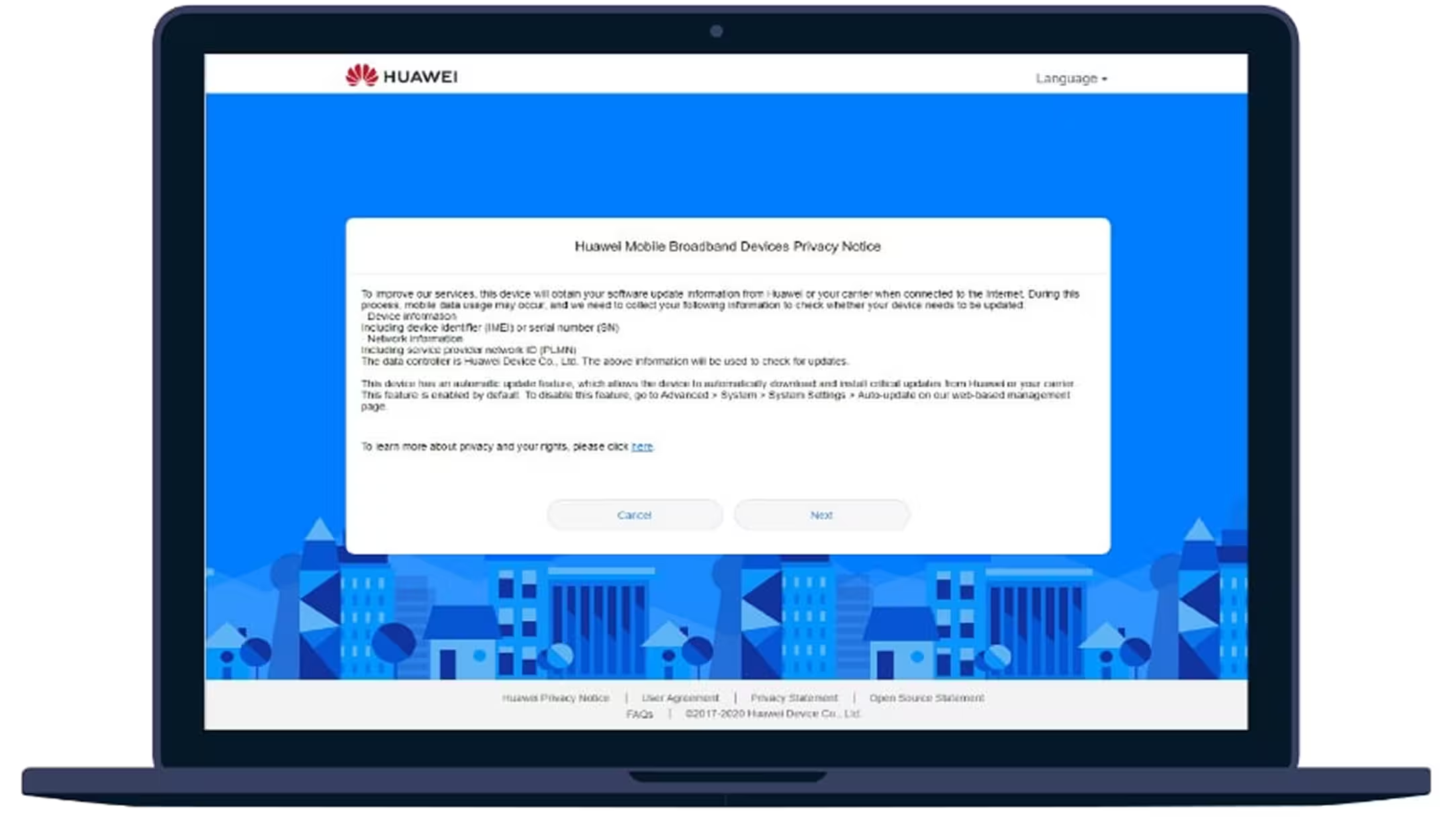
3. Take time to carefully read the privacy notice, then press Next.

Laptop displaying a Huawei Mobile Broadband Devices Privacy Notice on a blue background with cityscape illustration.
Step 07

Connecting to the Modem

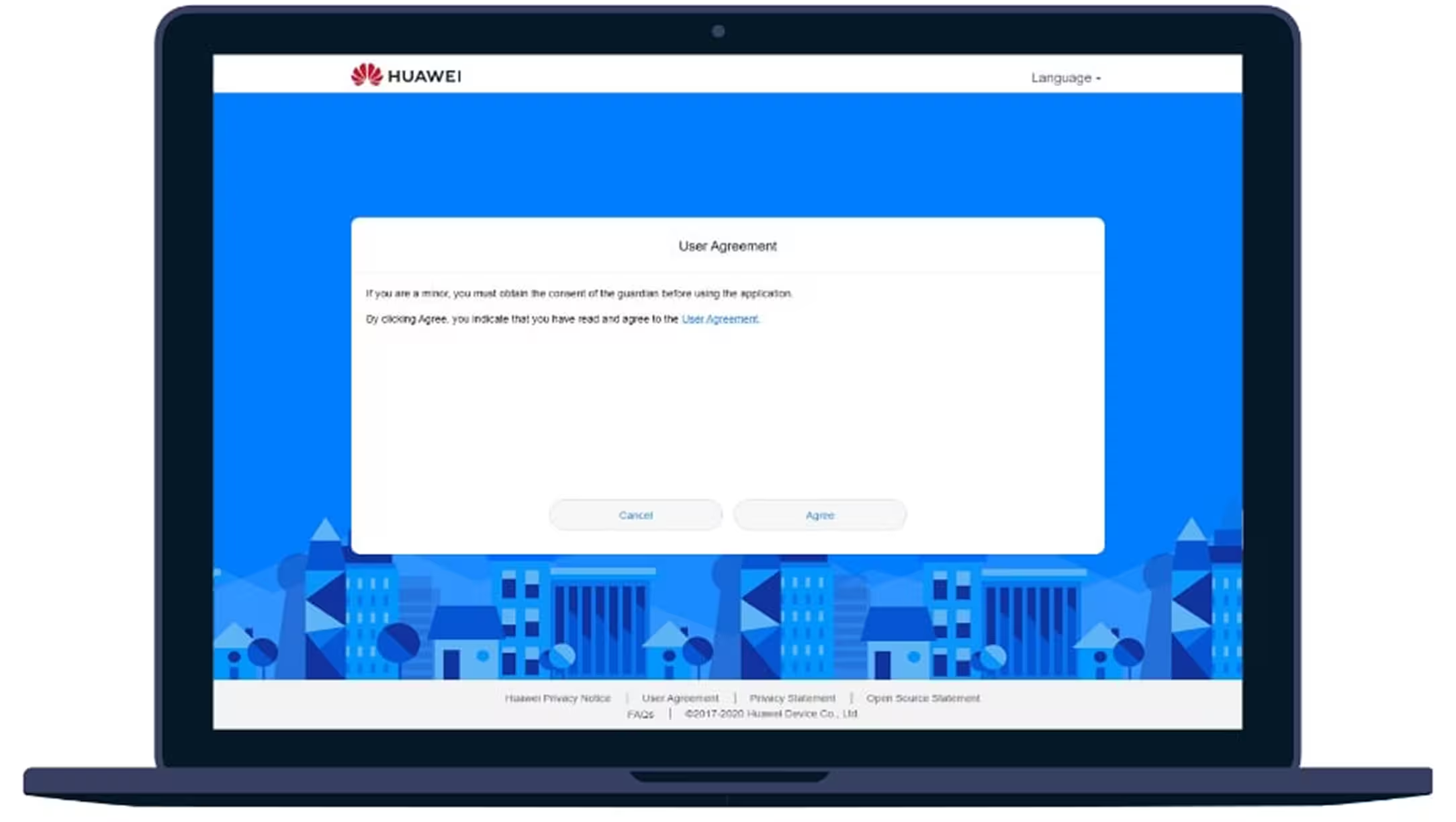
4. Again, take time to carefully read the user agreement, then press Agree.

Huawei laptop screen displaying a user agreement prompt with options to cancel or agree.
Step 08

Connecting to the Modem

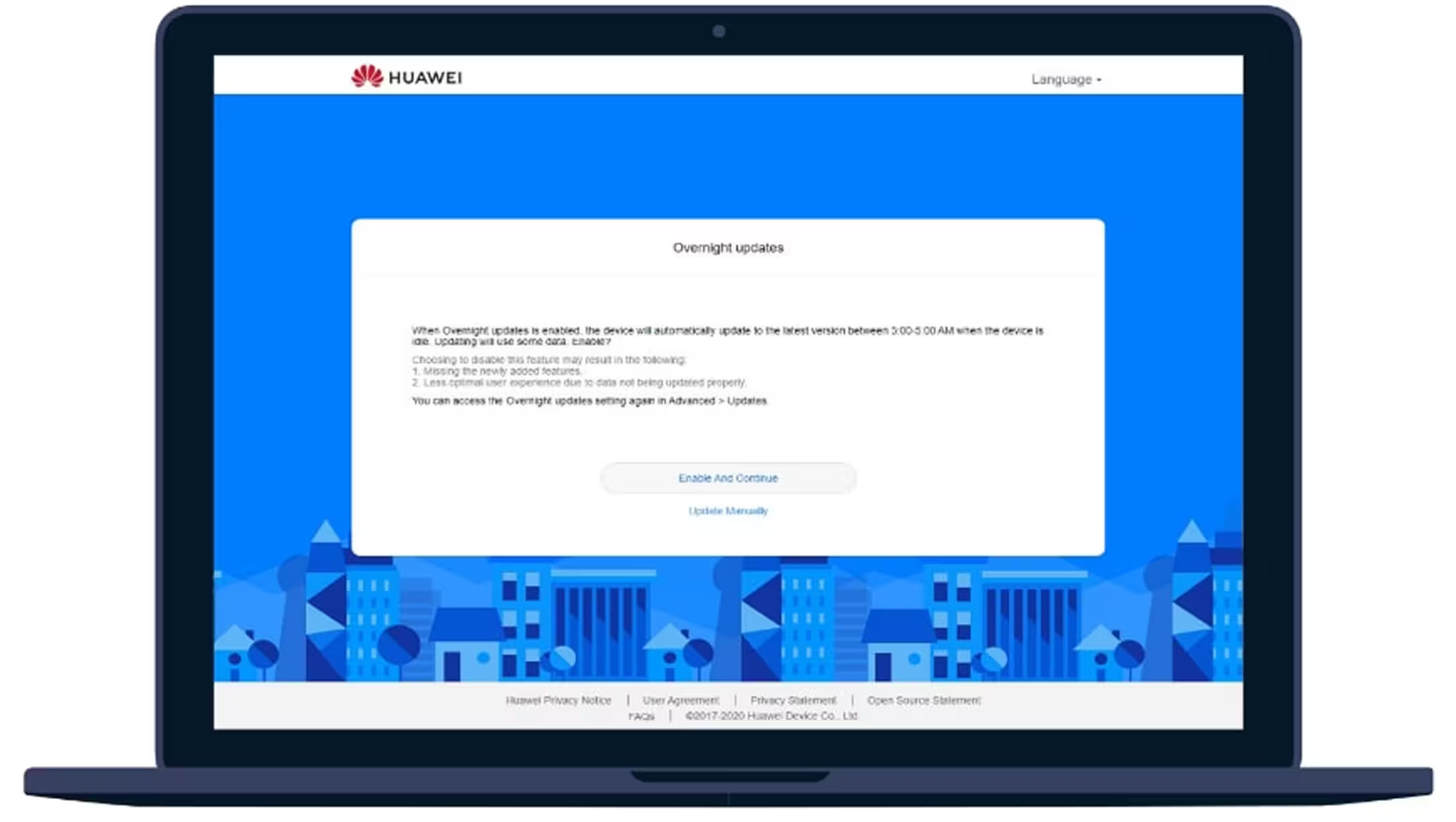
5. Optionally enable overnight updates or choose to do this manually

Huawei laptop screen showing a blue interface with 'Successfully finished' message and a finish button.
Step 08

Connecting to the Modem

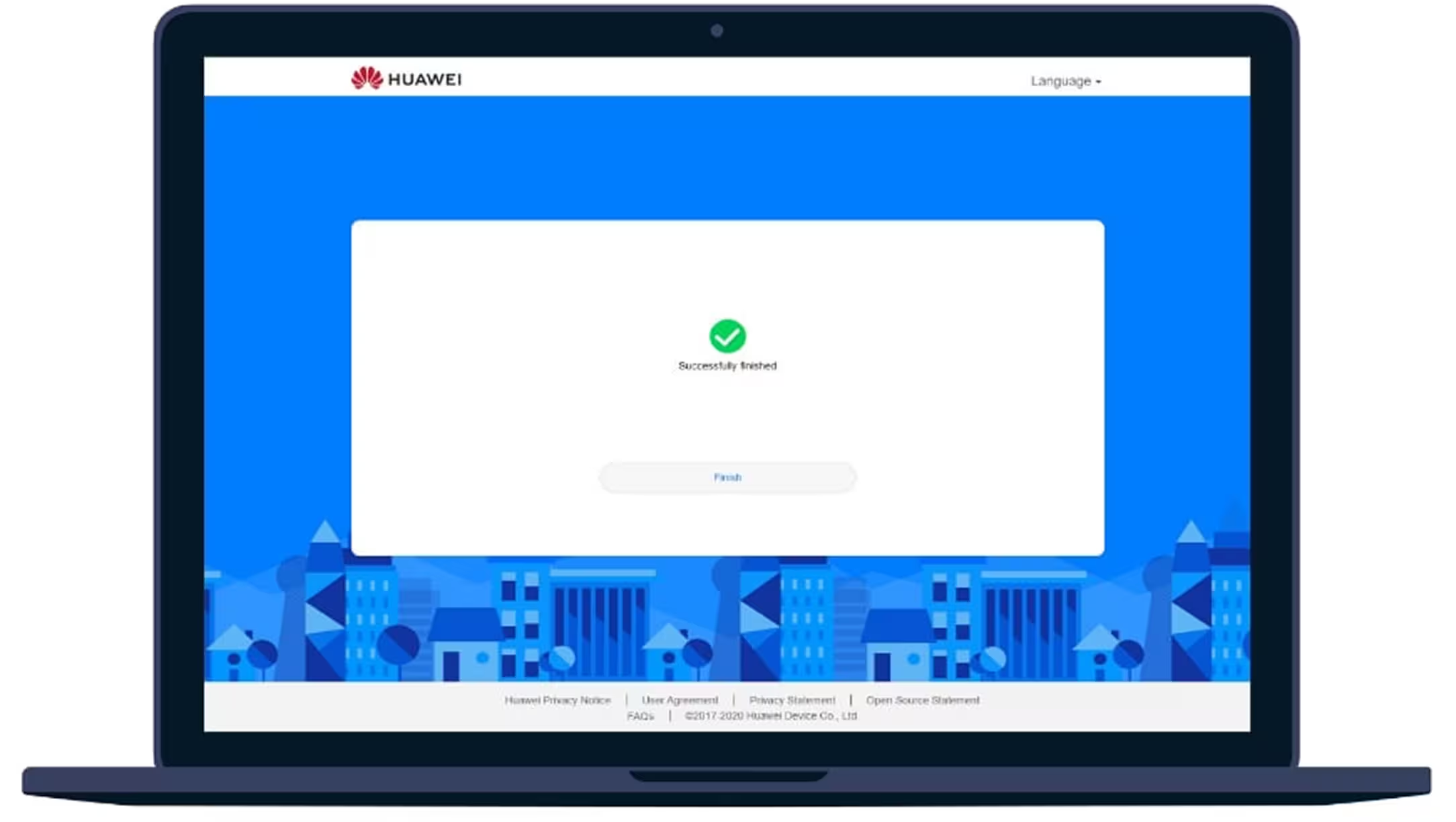
6. Press Finish.

Huawei device connection status screen on a laptop showing 4G signal strength, battery level, and one connected device.
Step 09

Connecting to the Modem

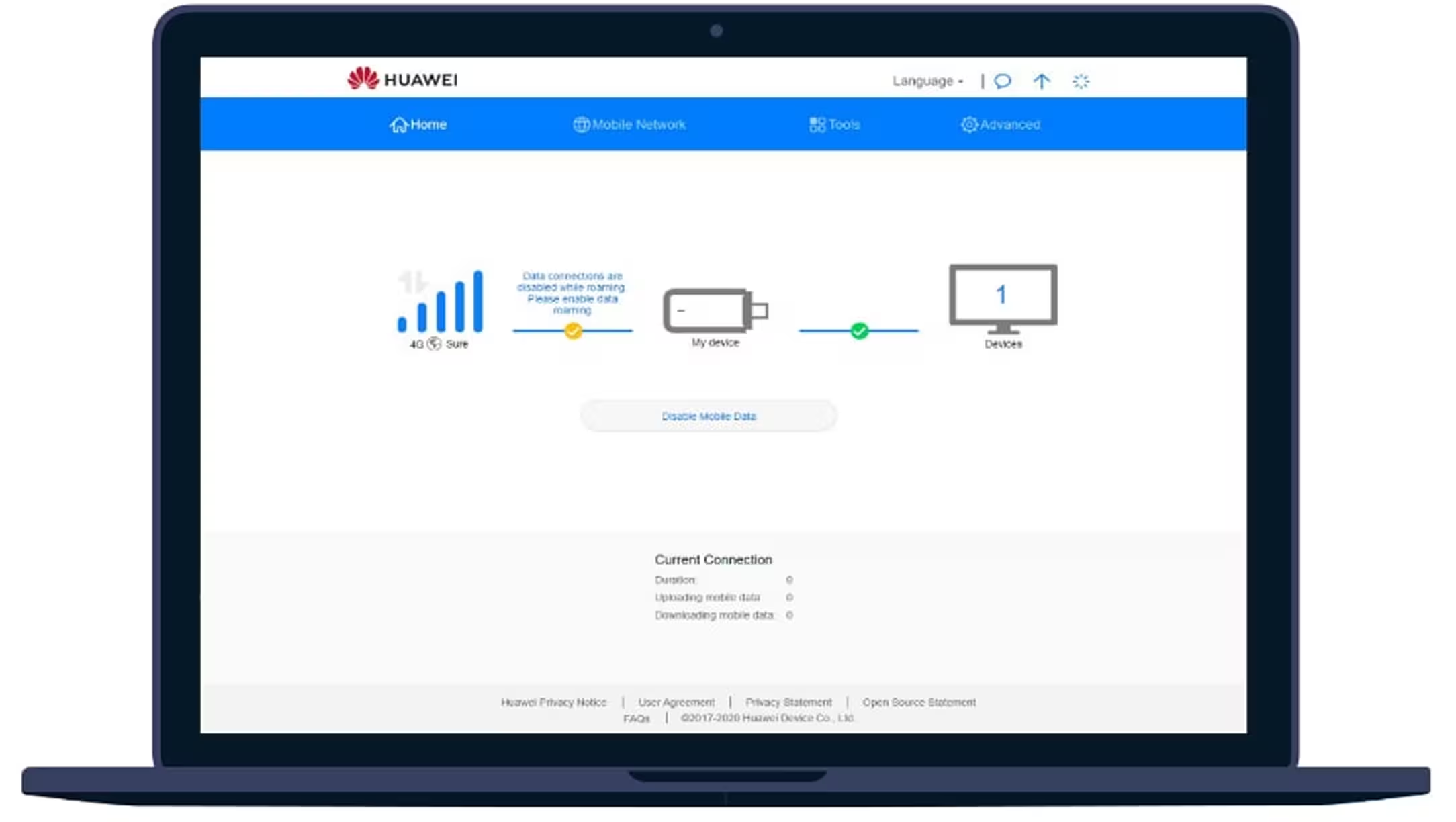
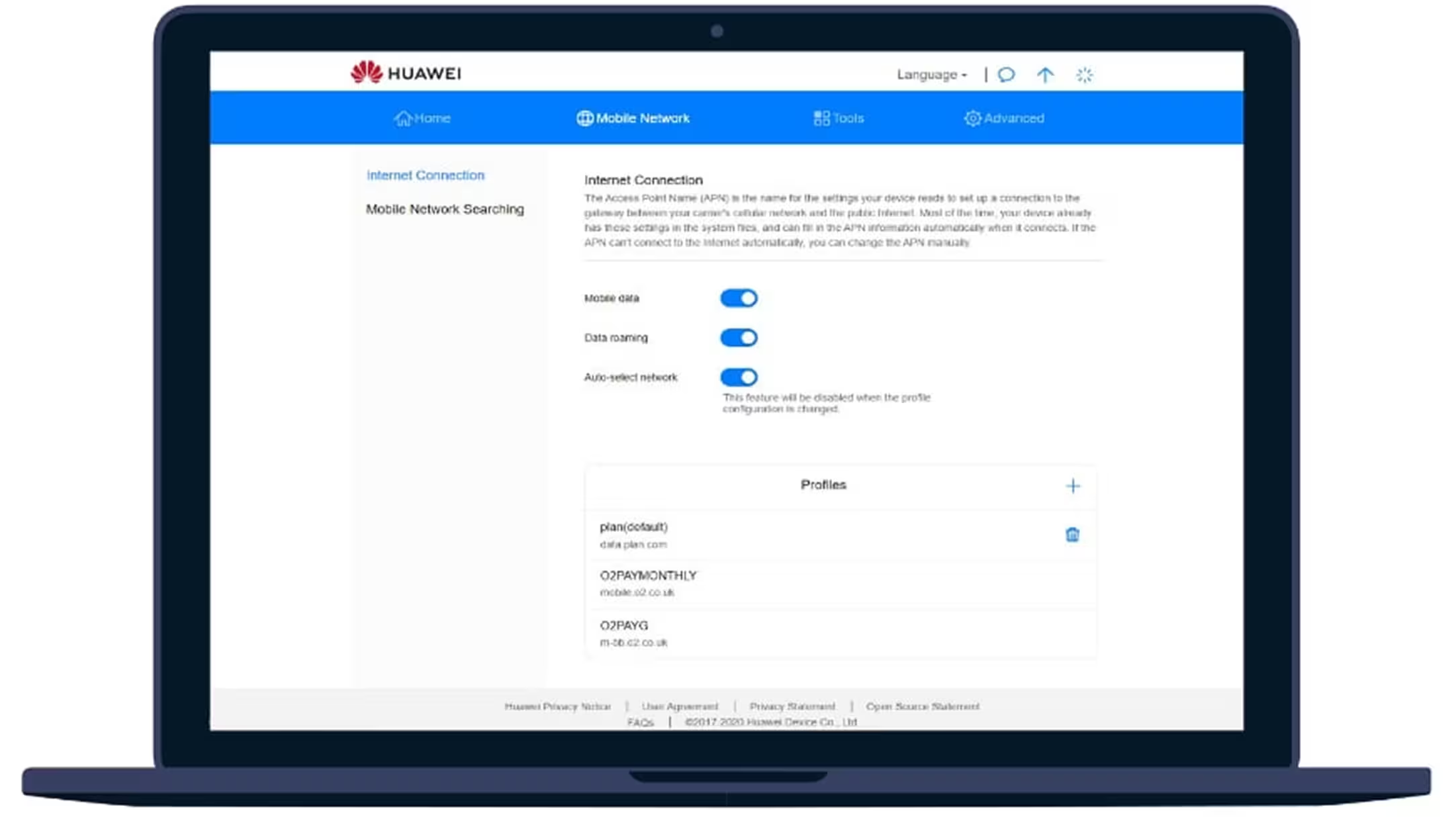
7. You now have access to the web management page!

Laptop screen showing Huawei mobile network settings with Internet Connection options and profiles.
step 10

Configuring the APN settings

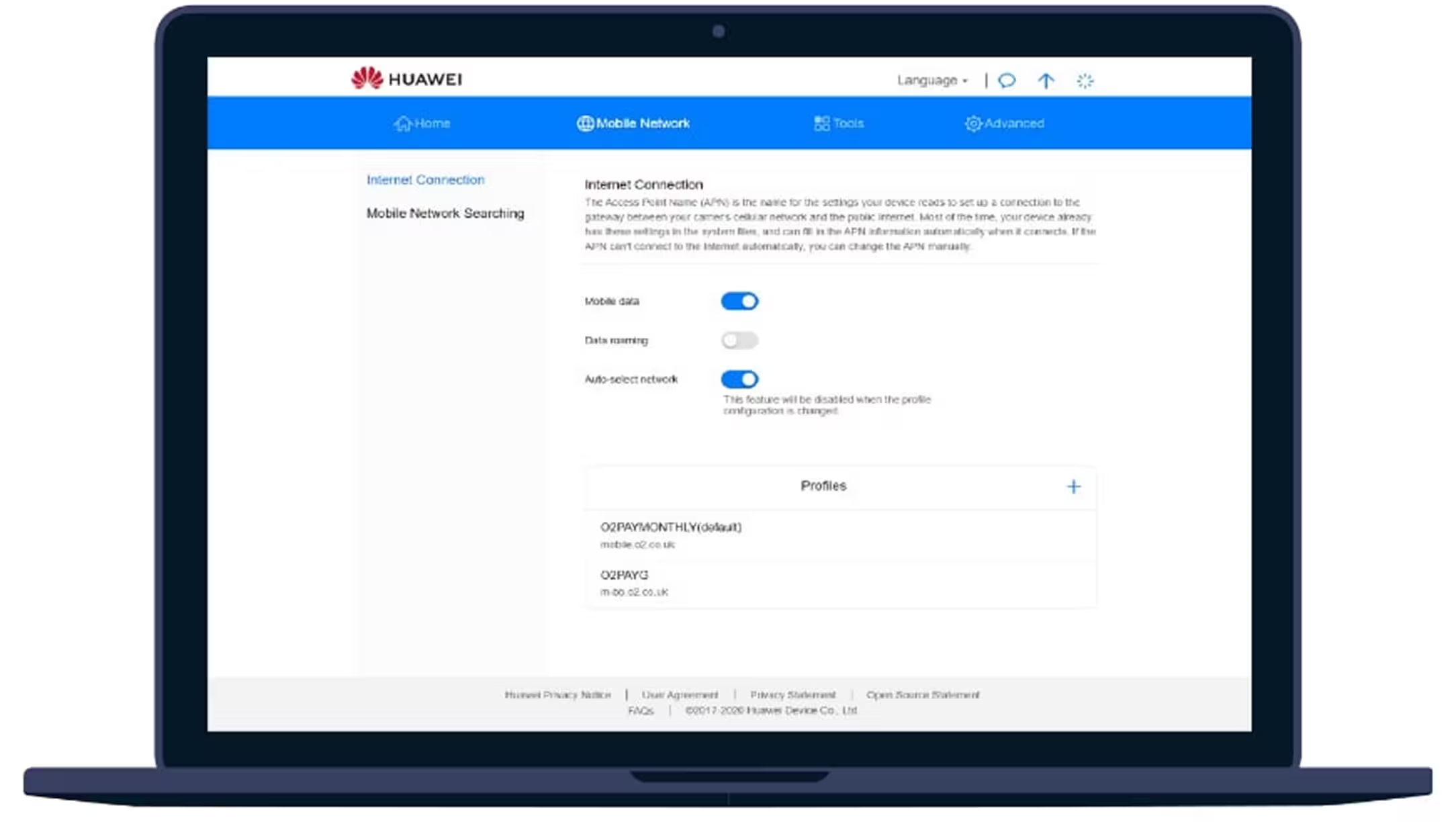
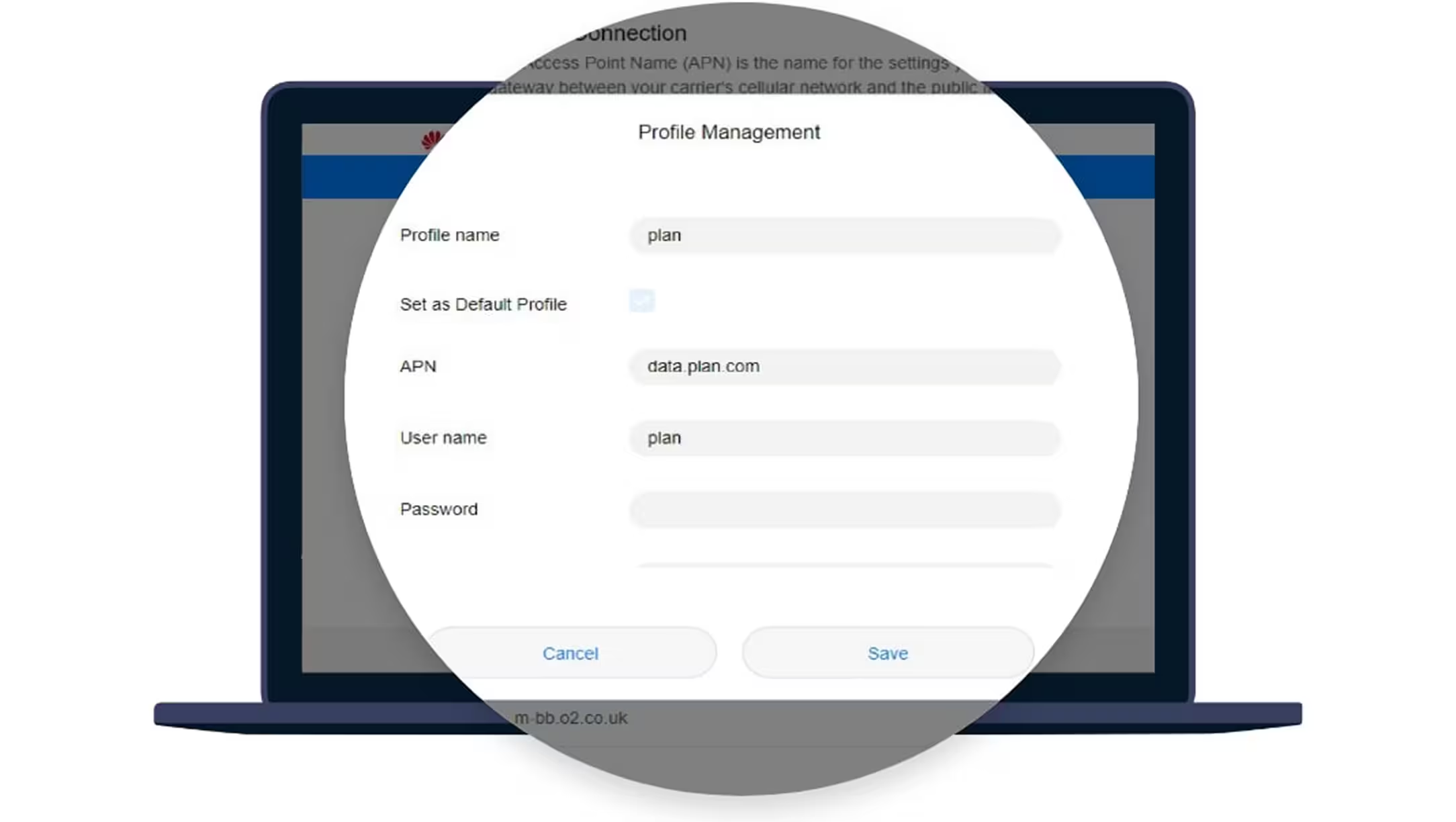
1. On the web management page (http://192.168.8.1/), navigate to Mobile Network, towards the bottom of the Internet Connection settings press the plus symbol next to Profiles.

Laptop screen showing Profile Management settings with fields for Profile name, APN, User name, and Password, and options to Cancel or Save.
Step 11

Configuring the APN settings

2. Complete the form with the following fields, everything else should be left default.

Laptop screen showing Profile Management settings with fields for Profile name, APN, User name, and Password, and options to Cancel or Save.
Step 12

Enabling roaming (optional)

1. On the web management page (http://192.168.8.1/), navigate to Mobile Network, on the Internet Connection settings toggle the Data roaming and Auto-select network sliders to the right.

Step-by-step illustration of removing the cover and inserting a SIM card into a USB modem.

talk to us

Experience how our powerful platform can transform your business.